Import price lists
To import price lists, go to Settings > Import > Import price lists.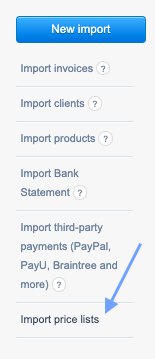
After navigating to the import screen, on the right side, you will find a sample import file. This file contains all the information the system needs to create a correct price list import. Among the required data for the proper creation of a price list are:
- Name
- Currency
- Position
- Net Price
- Gross Price
- Tax

When creating the import file, pay attention to the column order, as the system will classify the data into the appropriate categories based on it (refer to the graphic below and compare the column names). Once you have the import file, you can upload it in the Choose file field. Then, after clicking Next, proceed to the Review the data and import option. In that moment, you can decide which import rows you might want to exclude. The data will be assigned to columns as follows:
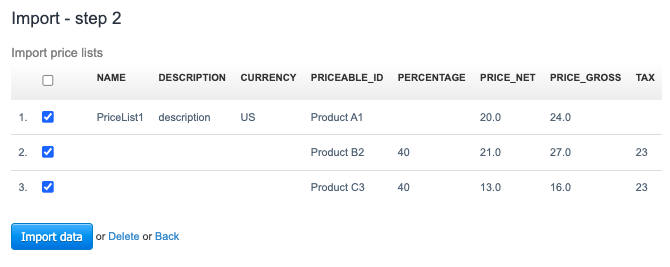
To complete the import, click the Import data button.
After the import is finished, you will see a summary screen of the import. Your price lists have been successfully added to the system.
Possible errors
An improperly executed import may result in an error message.

The most common errors in importing price lists result from importing too little data (for example, omitting the price list name or currency in the import file). Before importing price lists, make sure that the products for which you are creating price lists have been previously created in the system.
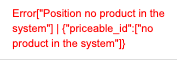
When you click on the number showing the quantity of import errors, detailed information about the error will be displayed. In the case of importing price lists for non-existent products you will see the following error: