The Online payments function in InvoiceOcean facilitates quick online payments for your clients. As a result, you will get paid faster and can easily track payment and invoice status. Also, you can collect payments on your website via the eCommerce Payments function.
The integration with Stripe allows your customers to securely pay by credit card.
Before you start integrating Stripe, make sure you have the Auto Payments feature enabled in your InvoiceOcean Account settings.
Read more about AutoPayments in our Knowledge Base for a walkthrough.
How to integrate InvoiceOcean with Stripe?
Here are the steps to integrate your account with Stripe:
1) Create a Stripe account
2) Configure your Stripe account
3) Connect your account with InvoiceOcean
4) Get paid by credit card online
Step 1 - Create a Stripe account
Opening an account is fast and free. However, note that Stripe charges a small commission on all transactions (see the current prices here).
To create a Stripe account, go to stripe.com and fill in the required fields following Stripe's instructions.
Step 2 - Configure stripe
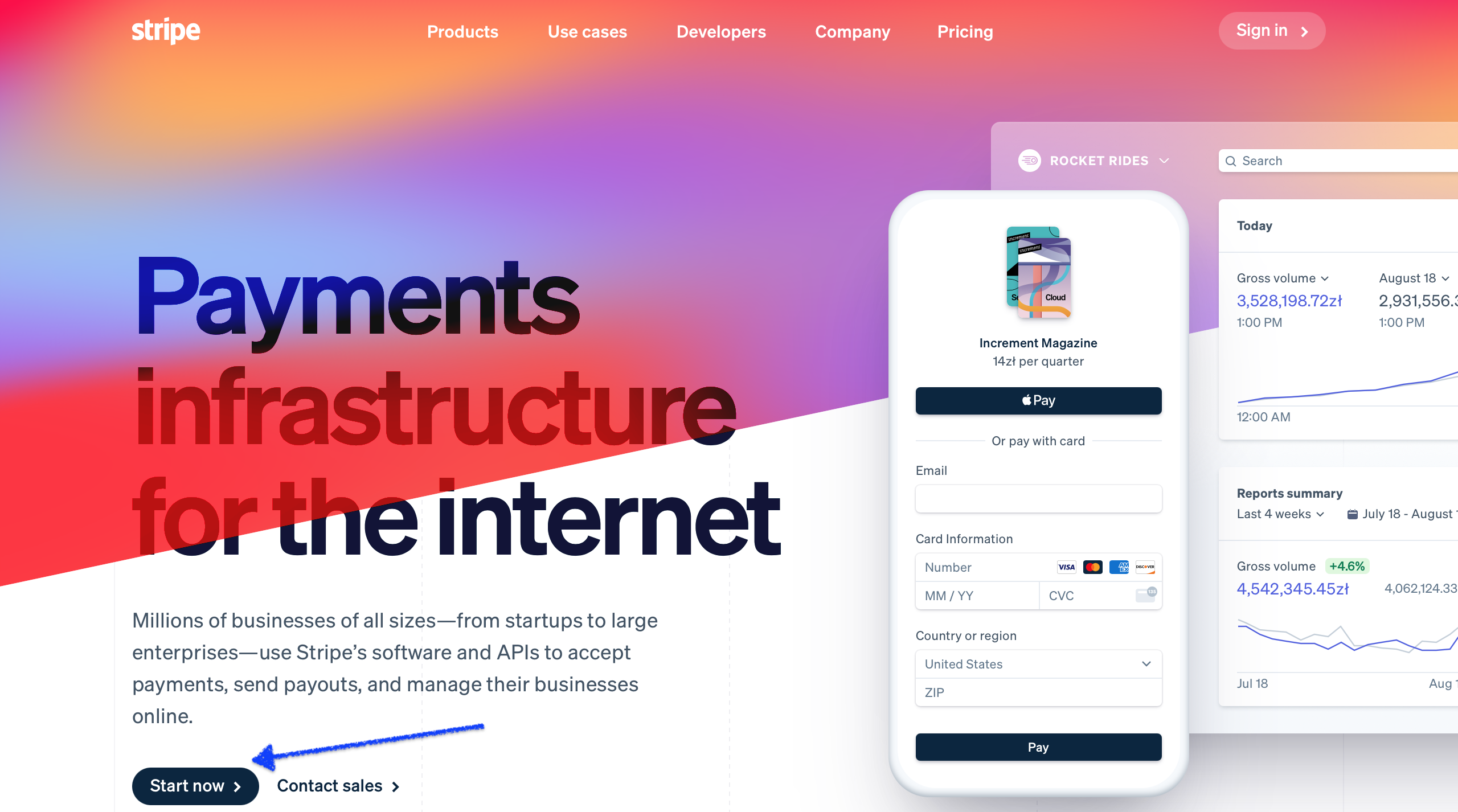
Activate your Stripe account by clicking on the "Start now" button from the home page.
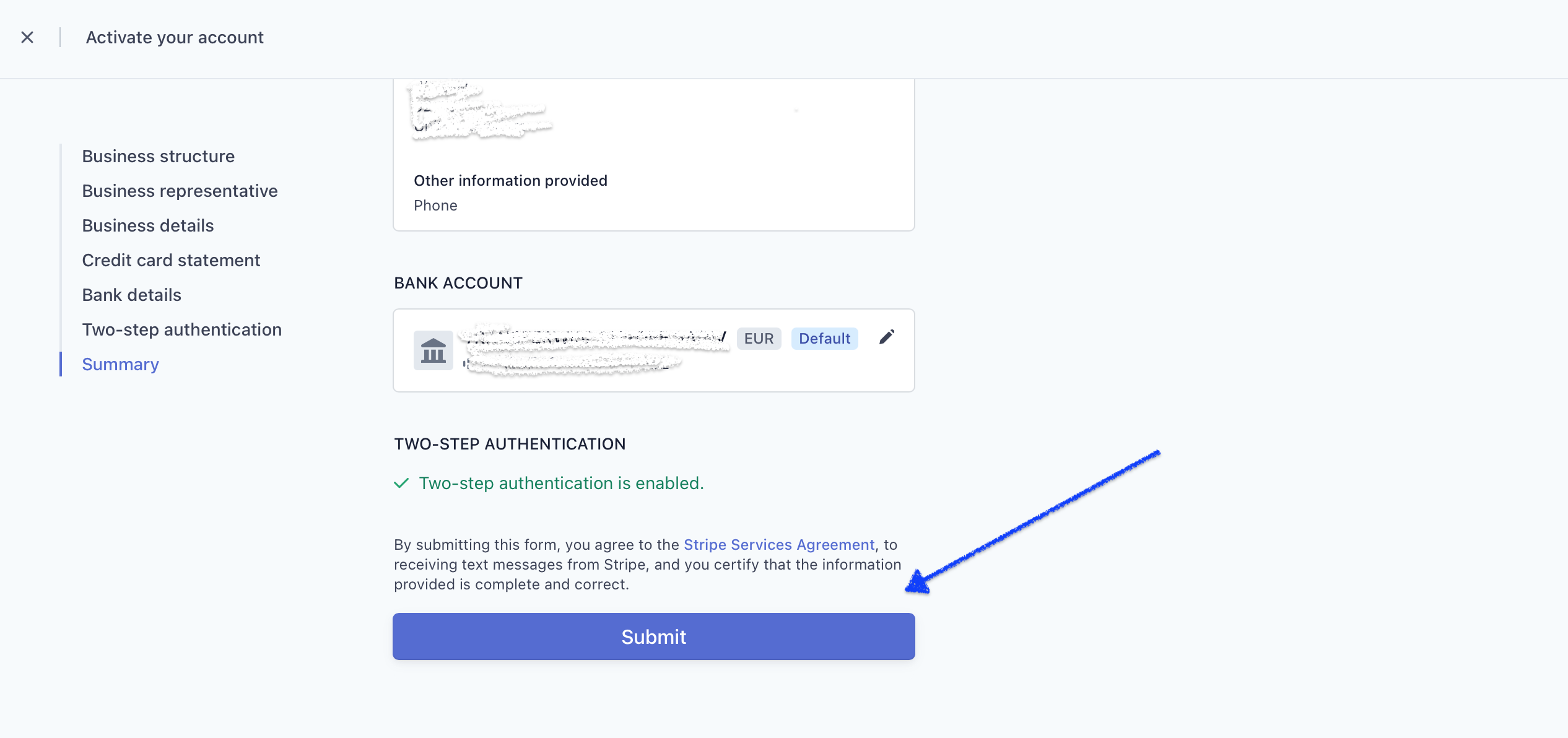
Then complete the information about your company and click "Submit".
Note: In the "Company website" field, enter the url of your InvoiceOcean account (e.g.: https://myaccount.invoiceocean.com)
Step 3 - Connect Stripe to your InvoiceOcean account
To do this, just copy and paste two fields from Stripe to InvoiceOcean.
1 - Copy Stripe's API keys
From your Stripe account, click on the Developers > API Keys menu, then copy the following keys (click on the Live API key button to view):
- Publishable key
- Secret key
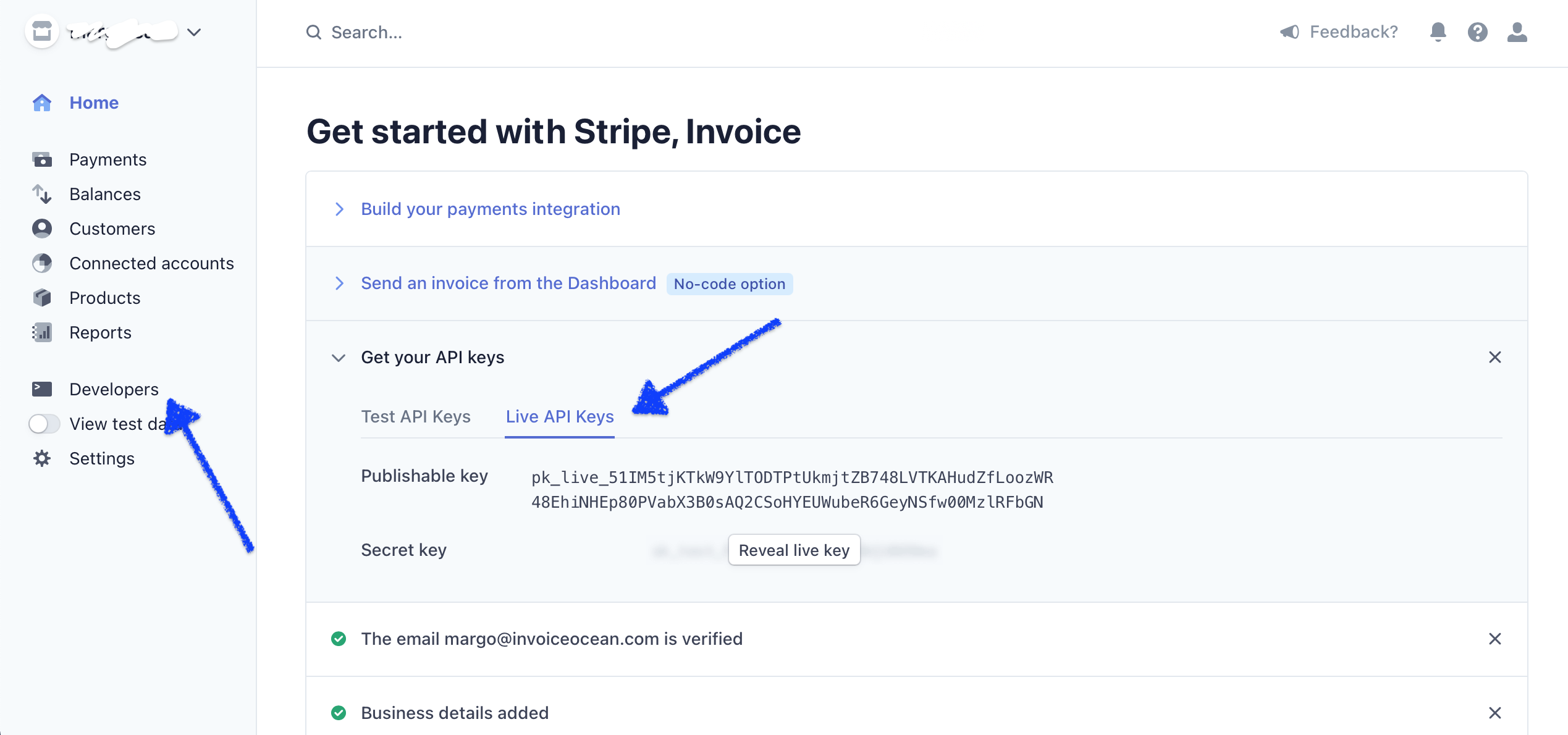
You can access API keys from the welcome window or Developers section.
2 - Paste API keys to invoices
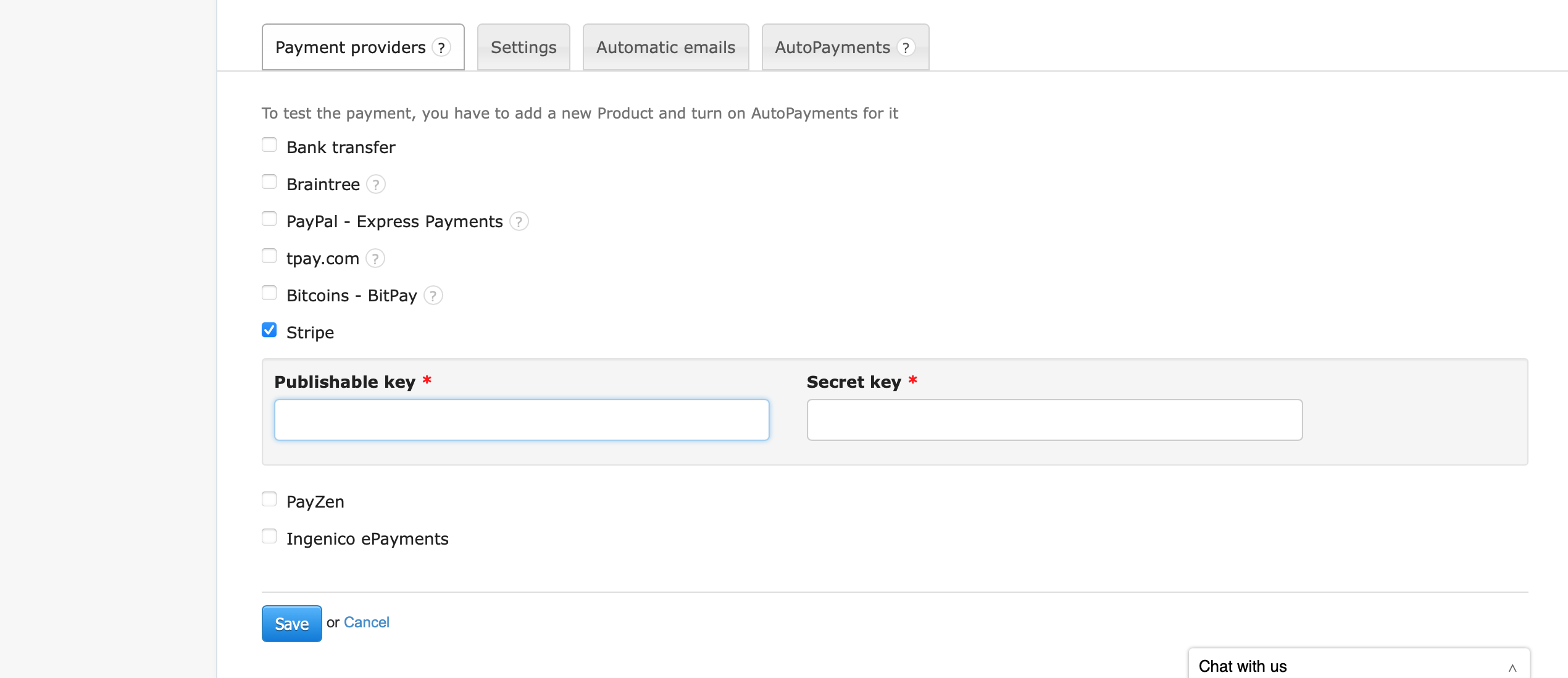
Log in to your InvoiceOcean account and go to the Account Settings > Your account >Online payments> Payment providers, then check Stripe: Paste the keys copied from Stripe in the corresponding fields, then save.
Note: If you haven’t enabled AutoPayments yet, you will have to activate the AutoPayments field by going to the Account Settings > Your Account > Auto payments. Find out more about Autopayments.
3 - Webhook button (applicable only in some cases)
In some cases, a Webhook button may appear in your Invoice Ocean account.
In principle, the software automatically creates the necessary webhook (event notification) on your Stripe account which transfers information about a successful payment to Stripe.
However, in the following cases, the button is displayed because you need to reconfigure the webhook. It happens in the following cases:
1) if a webhook has already existed on your Stripe account
2) if you modify your Stripe API keys (for example, when creating a new Stripe account, switching from the test to production mode).
To resolve this, click on the Webhook button before clicking Save.
There you go, the integration is complete!
☞ Note: Test mode
The "API" section of your Stripe account allows you to stay in "Test Mode". You can integrate your Stripe account in test mode with your invoices to test the integration and make test payments using test bank card details made available by Stripe on this page.
When you are ready to receive "real" payments from your customers, you can switch to the production mode. Note that the API keys change when you switch modes. You will therefore have to update them in your InvoiceOcean account.
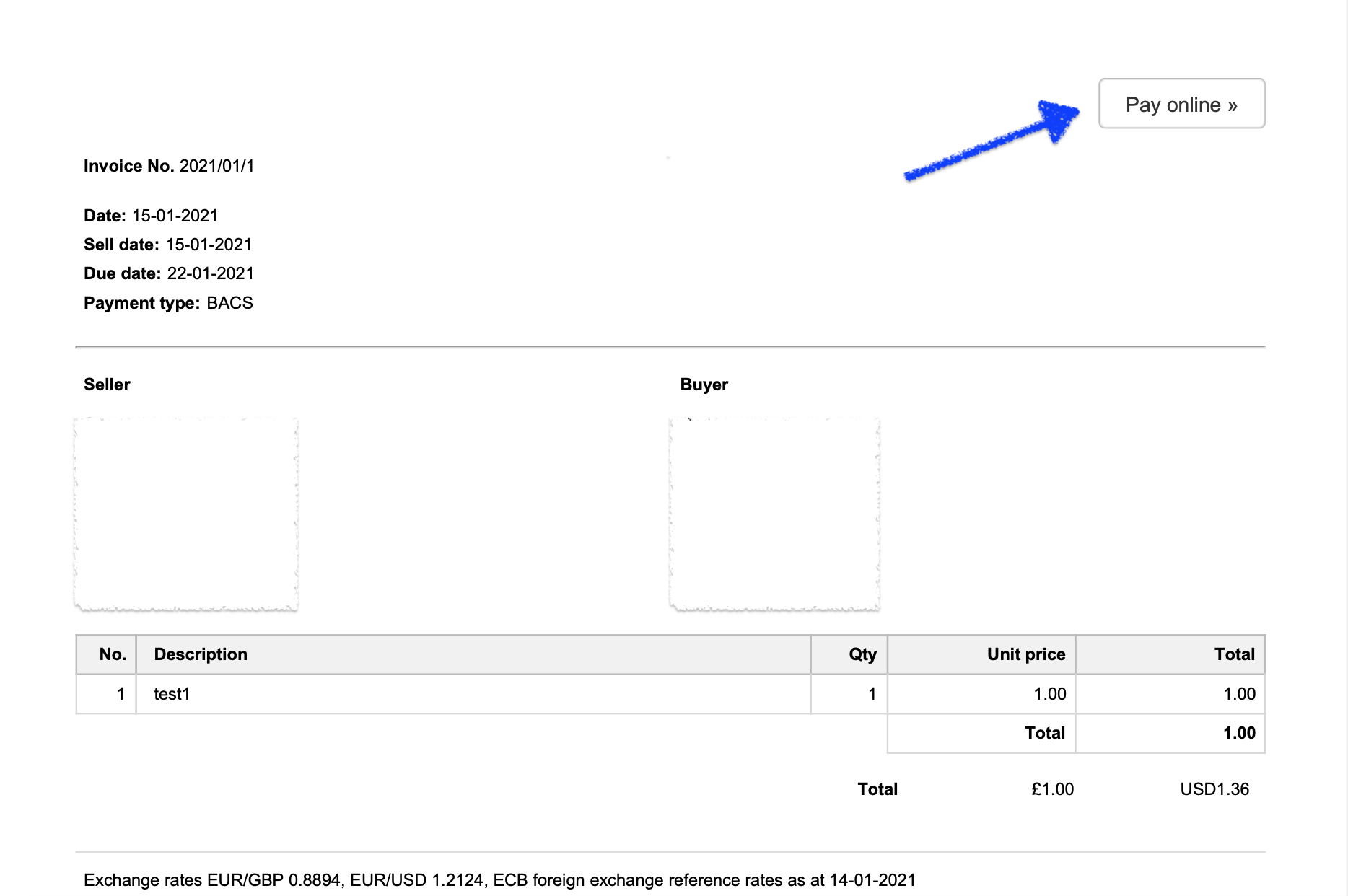
From now on, when your customers receive an invoice by email, they will be able to click the button "Pay online" which appears on the preview and the pdf of your invoices.
Once your customer confirms a payment method (credit card via Stripe), they are redirected to the payment form to input bank account details.
Your company name and logo (the way you entered them in your Stripe account) as well as the invoice amount and number are displayed at the top left of the form.
☞ Note: If the customer's bank has double authentication enabled, the customer will have to enter an SMS code to validate a payment.
Once the payment is validated, the following happens.
- The status of the invoice will be automatically updated to Paid.
- The payment details will be added to the Payments tab of your InvoiceOcean account. You will also see unpaid invoices (marked with the status "Unpaid").
E-commerce payment
If you have a webpage, your customers will be able to pay for a product or service on your website.
Looking for an alternative to Stripe? You can integrate your InvoiceOcean account with Paypal and Braintree.