InvoiceOcean gives Users the possibility to activate two-factor verification (two-step verification) via Google Authenticator app. This is definitely a safer way to log in - instead of only one step of verification (such as entering a password), two steps are required - in this case, entering the verification code generated by Google Authenticator app when logging in to your account in InvoiceOcean.
More about two-step verification and its second type you can read in the post Security in InvoiceOcean with two types of two-step verification and choose the one that works best for you.
To use the second type of two-step login and connect your account with Google Authenticator:
- install the Google Authenticator app on your mobile device
- go to the tab with your login name next to the Settings menu
- select My account
- press the Edit Profile / Change password button

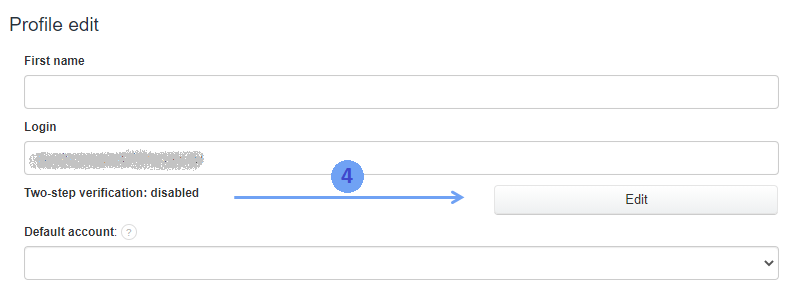
- press the Edit button
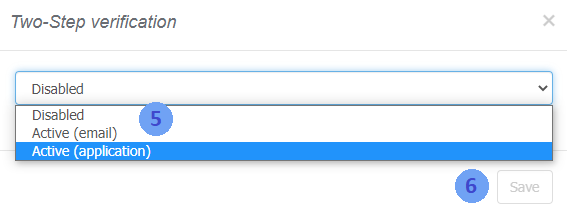
- select the Active (email) option
- press the Save button
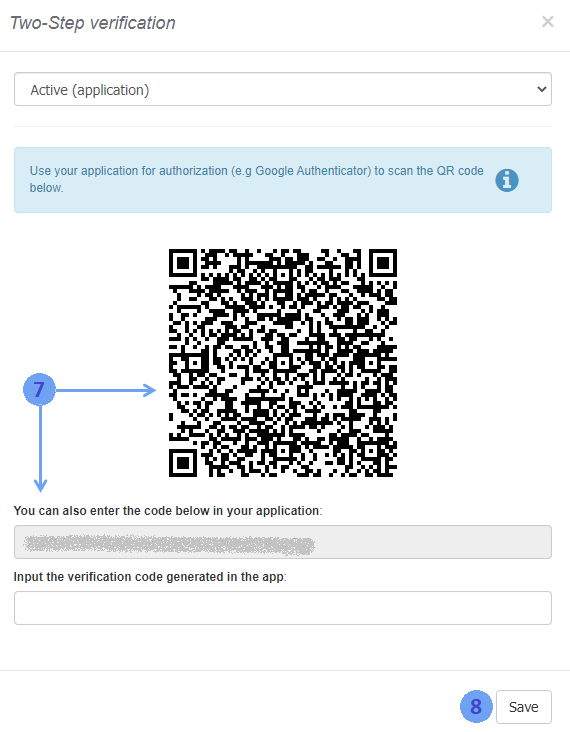
- scan the generated QR code with the application or enter the code you received in the gray field
- enter the code that will appear in your application in the section Input the verification code generated in the app
- press the Save button
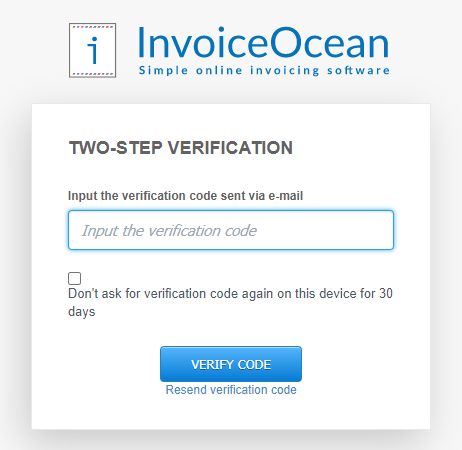
From that moment during each login, you will be required to enter the verification code available in your application. It expires each time you press the VERIFY CODE button, and a new one immediately appears in its place, which guarantee the secure use of InvoiceOcean.
To turn off the two-stage verification:
- go to the tab with your login name next to the Settings menu
- select My account
- press the Edit Profile / Change password button
- press the Edit button
- select the Disabled option
- press the Save button