
When the product has not been sold or bought yet and is not included in any any invoices or warehouse documents, it will be removed from the system.
However, it often happens that the product that we want to remove has already been sold/bought and appears on invoices and warehouse documents. Such a product cannot be completely removed from the system. The product then becomes inactive and is initially not visible in the product list.

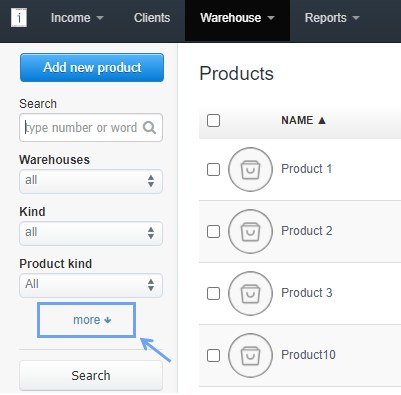
To see the list of inactive/deleted products in the system, use the more option in the side panel of the product list, where the Inactive products field will appear. For example, select only inactive ones and click the Search button.
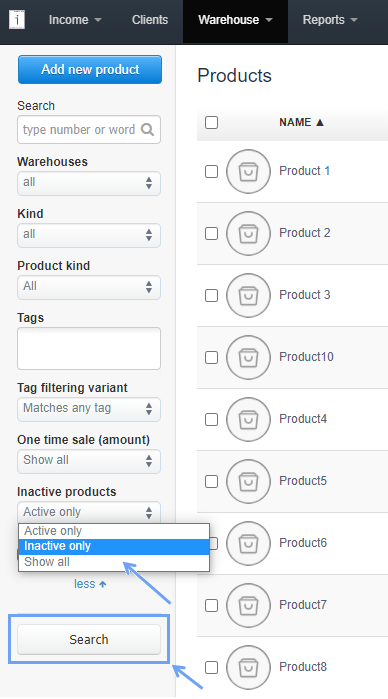
A product written in grey font will appear.

To reactivate a product, edit it and uncheck the Inactive option. After saving the changes, the product should appear again in the product list.
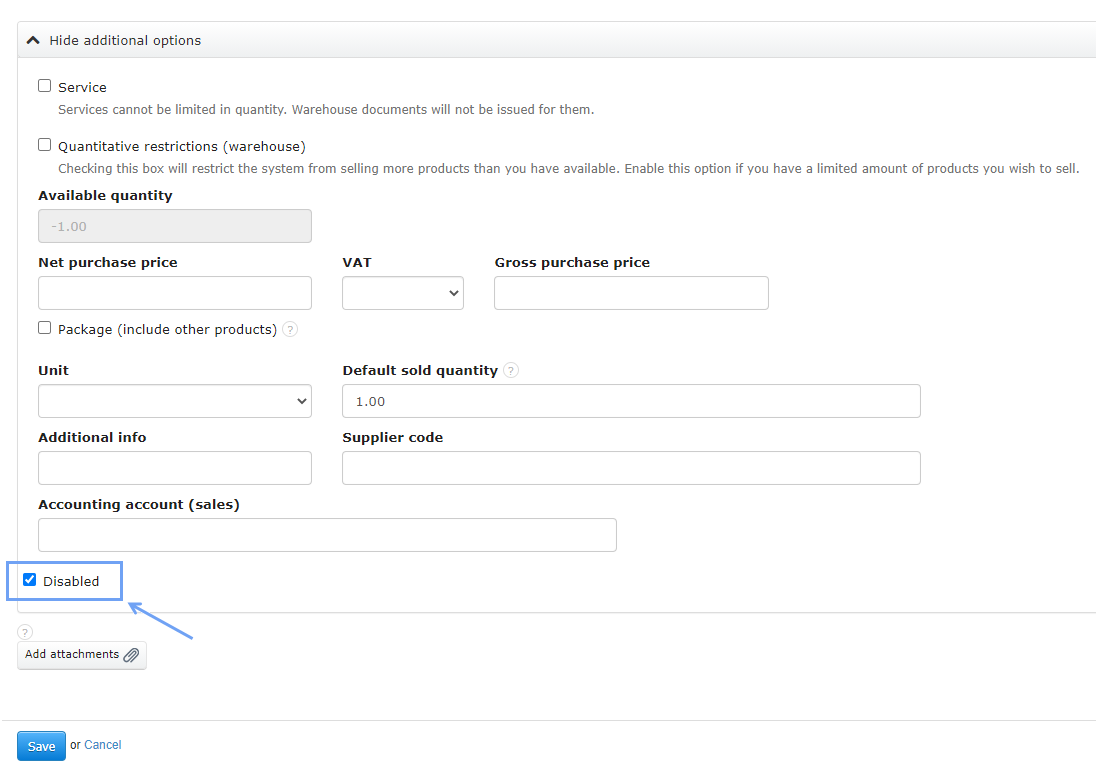
NOTE! An inactive product that cannot be permanently removed from the system, e.g. with the name “Product01”, blocks this name, which means that you cannot add a second product with the same name to the system.
You can deactivate a product that has a positive quantity in the system.
This option is often used when the sale of a product from stock is temporarily suspended, e.g. for seasonal products.