You may select whether your changes will apply to a printed invoice, previewed invoice, or both.
In order for the changes to apply to printed invoices only, start by pasting the following code:
}
@media print{
In order for the changes to apply to previewed invoices only, start by pasting the following code:
}
@media screen{
In order for the changes to apply to printed and previewed invoices, start by pasting the following code:
}
@media all{
Changing the color and font in the seller section (only works in the Default template):
table.clean.to_half > tbody > tr > td:first-child p + p + p { color: red !important; font-size:1.4em; }</code>

<code>table.clean.to_half > tbody > tr > td:first-child p + p + p + p{ color: #000 !important; }</code>

<code>table.clean.split_half > tbody > tr > td:first-child p:last-child{ color: red !important; font-size:1.4em; }</code>
These codes will make the Due date and your Bank info stand out:
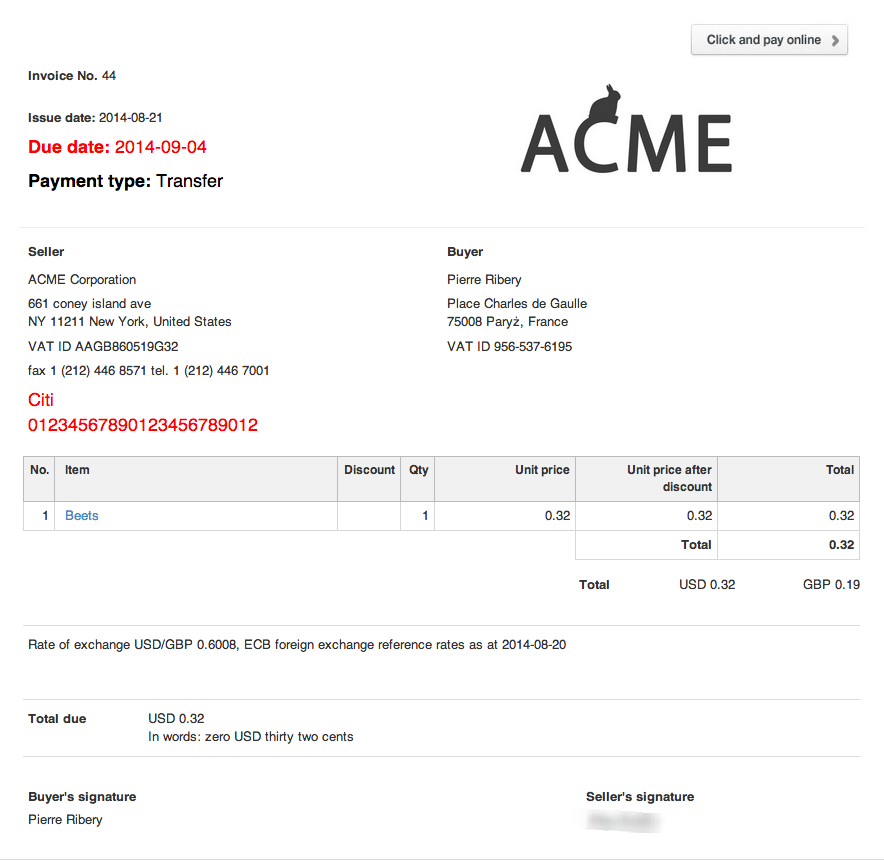
In order for it to work in the Blue template, paste the following code:
.additional_data p + p + p { color: red !important; font-size:1.4em; }