To change the leading color in the Sky template to another color of your choice (here: purple), go to the Settings> Account settings> Print settings tab, and then at the bottom of the page fill in the field Customize print with CSS with the CSS code shown below:
}
@media all{

#document_type,#document_number{
color:#493FB8 !important;
}
.header, .main_inv_table th{
background-color:#493FB8 !important;
border:1px solid #493FB8 !important;
}
#seller,#buyer,#summary{
border:1px solid #493FB8;
}
#pos_table .summary_totals > td:not(:empty){
background-color:#493FB8 !important;
border-bottom:1px solid #493FB8 !important;
}
table.main_inv_table td {
border-left: 1px solid #493FB8 !important;
border-right: 1px solid #493FB8 !important;
}
table td.empty{
border:none;
}
#pos_table > tbody > tr.position_row:last-of-type > td{
border-bottom:1px solid #493FB8 !important;
}
#pos_table tr.summary_totals > td.summary_header{
border-left: 1px solid #493FB8 !important;
}
#pos_table tr.summary_totals > td:not(:empty):last-of-type {
border-right: 1px solid #493FB8;
}
table td.empty {
border: 0 !important;
}
#seller_sign span{
color:#493FB8;
}
#buyer_sign span{
color:#493FB8;
}
After saving the changes, the invoice in the Sky template looks as follows:
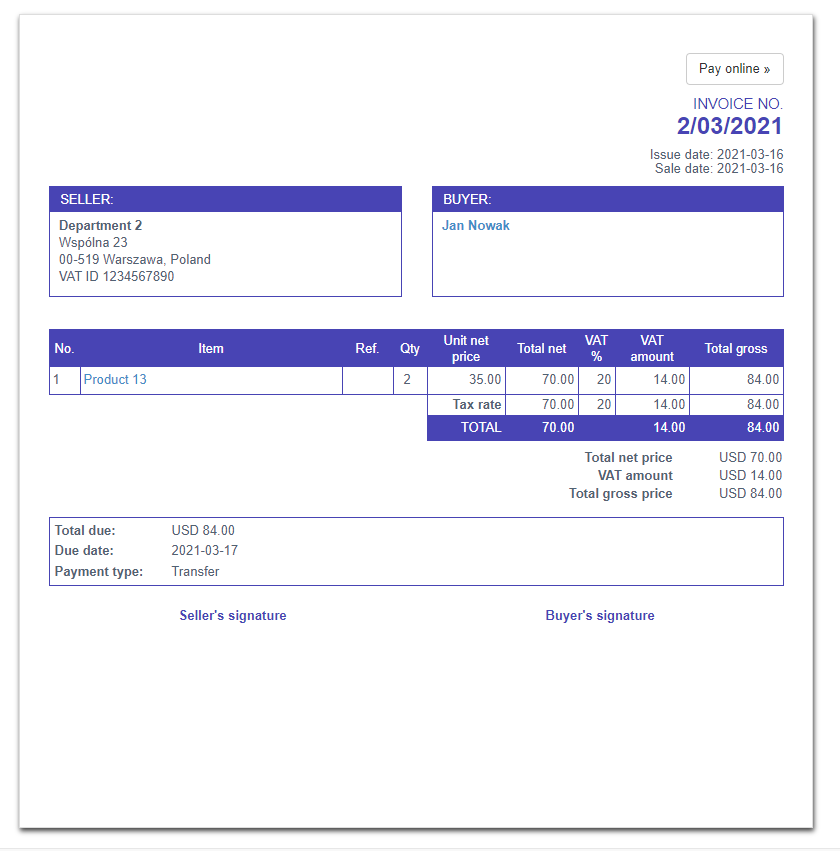
In the CSS code above, we used the so-called hexadecimal code of the violet color, i.e. #493FB8.
Of course, you can use a different color in our CSS code in the form of a hex code.
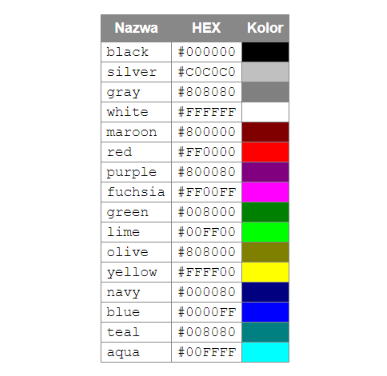
The primary color codes are listed here:
Codes of other colors are available online, just enter “hexadecimal color codes” in the search engine.