Note! Please remember that the following changes are visible only on the printout or in the PDF generated from the system.
In order to change any element of the invoice on the printout, go to the Settings> Account settings> Print settings tab, and then at the bottom of the page fill in the field Customize print with CSS with an appropriate CSS code.
Changing color and size of the font in the Seller section
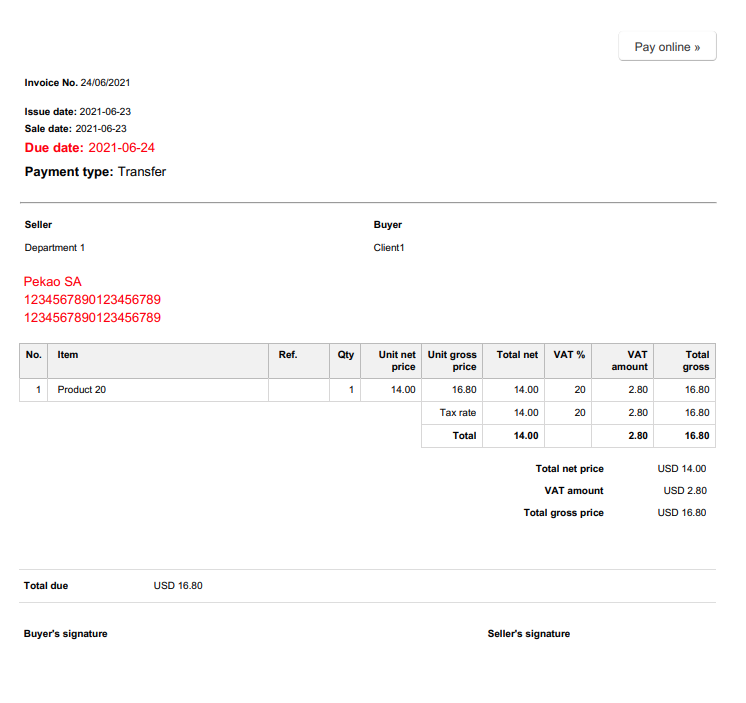
table.clean.to_half > tbody > tr > td:first-child p + p + p { color: red !important; font-size:1.4em; }table.clean.to_half > tbody > tr > td:first-child p + p + p + p{ color: #000 !important; }table.clean.split_half > tbody > tr > td:first-child p:last-child{ color: red !important; font-size:1.4em; }After entering the above code, the lines on the document will be marked in red as shown in the screenshot below (this CSS style works only in the DEFAULT template)
To increase the Due date field in the BLUE template you need to use the following code:
.additional_data p + p + p { color: red !important; font-size:1.4em; }