A price offer is a non-accounting document that allows you to present an offer to your customer, simultaneously showcasing the product in a graphic form and providing a breakdown of suggested transaction prices.
Document Activation
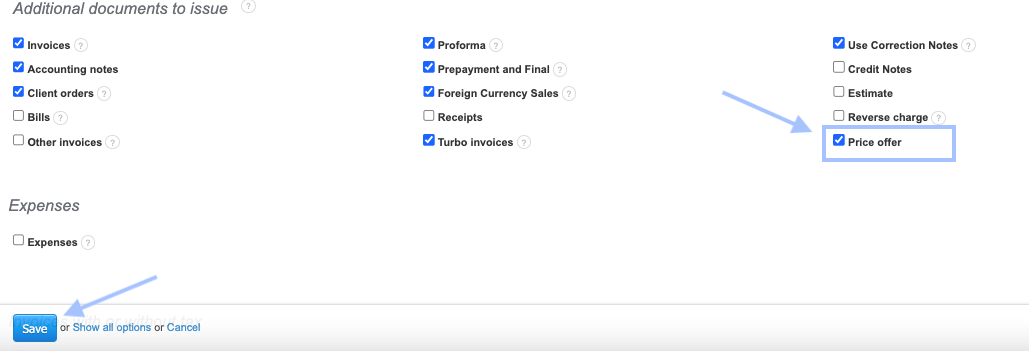
To issue a document, first ensure that the given document type has been activated in the section Additional documents to issue. To do this, go to the Settings > Account Settings and select the Price offer document. After checking the box, click Save in the lower section of the page.
Issuing a Document
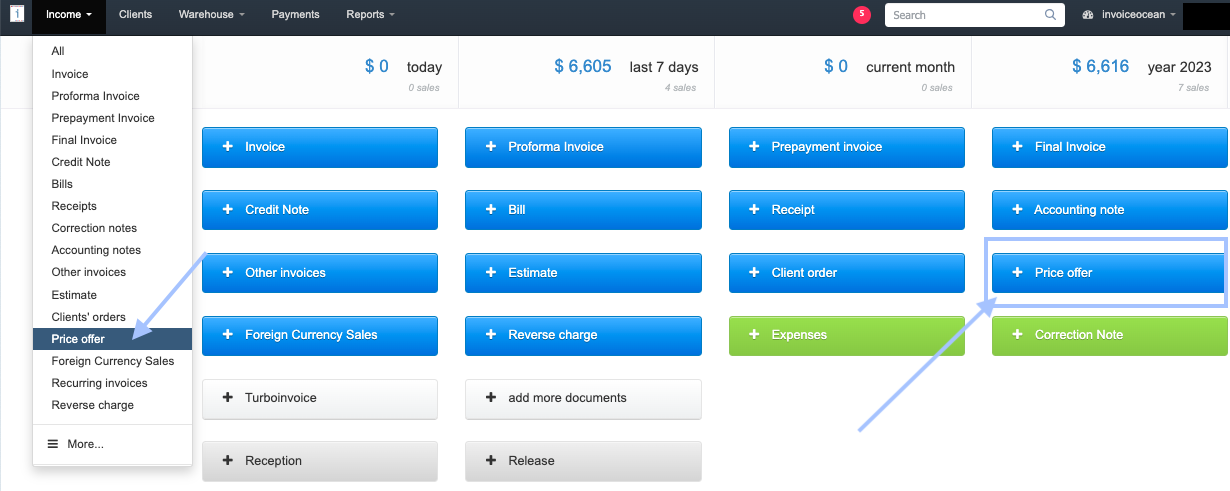
To issue a document, go to the main screen and click on the Price offer tile. Alternatively, you can go to the Income tab, access the list of documents, and initiate the document issuance from there (the Add new option will appear on the document list)
After completing all the data in the document editing form and clicking save, you will receive the price offer document.
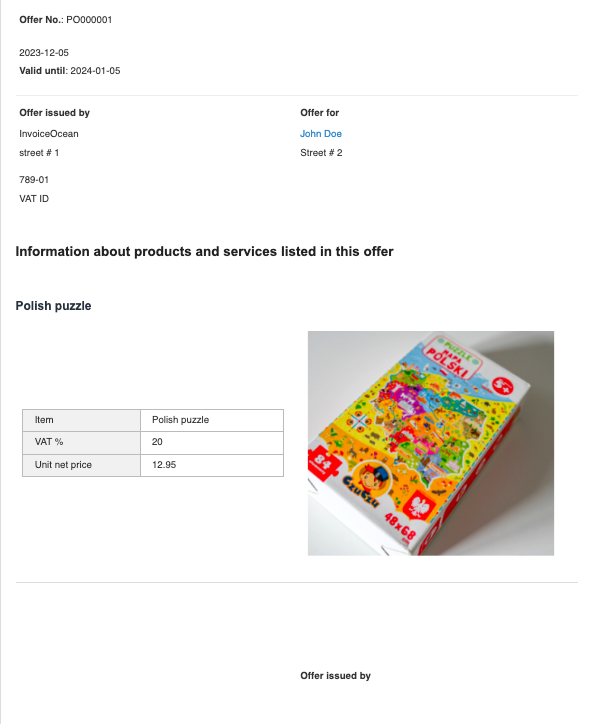
An example document may look like this:
Numbering of the Price offer Document
In InvoiceOcean, you can assign your own numbering formats to documents, including price offers.
To create your own numbering template, go to the Settings > Account Settings > Documents numbering > The default Price offer numbering format

Among the variables that can appear in the created numbering format are:
- yyyy — four-digit representation of the year
- yy — two-digit representation of the year
- mm — month
- dd — day
- nr — consecutive number
- nr-m — consecutive number within the current month (numbering restarts at the beginning of each month)
- nr-d — consecutive number within the current day (numbering restarts at the beginning of each day)
The numbering format saved from the account settings will now be automatically used when creating consecutive numbers for issued documents.
You can also start numbering from a specified number when generating a price offer. For example, if you have created documents #1, #2, and #3 outside InvoiceOcean, enter the number 4 when creating a price offer, and the system will maintain the numbering order, suggesting subsequent numbers like 5, 6, etc.
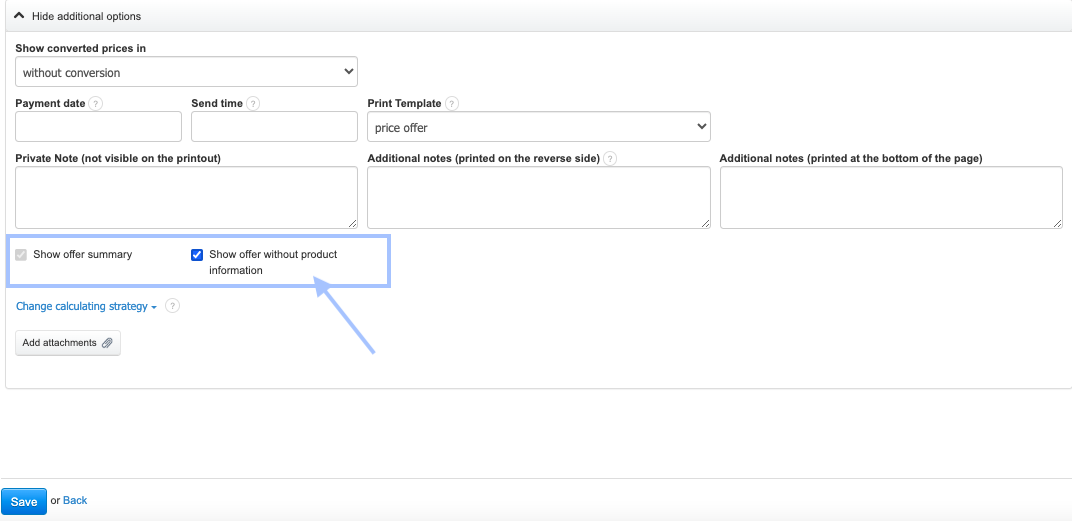
Option Show offer without product information
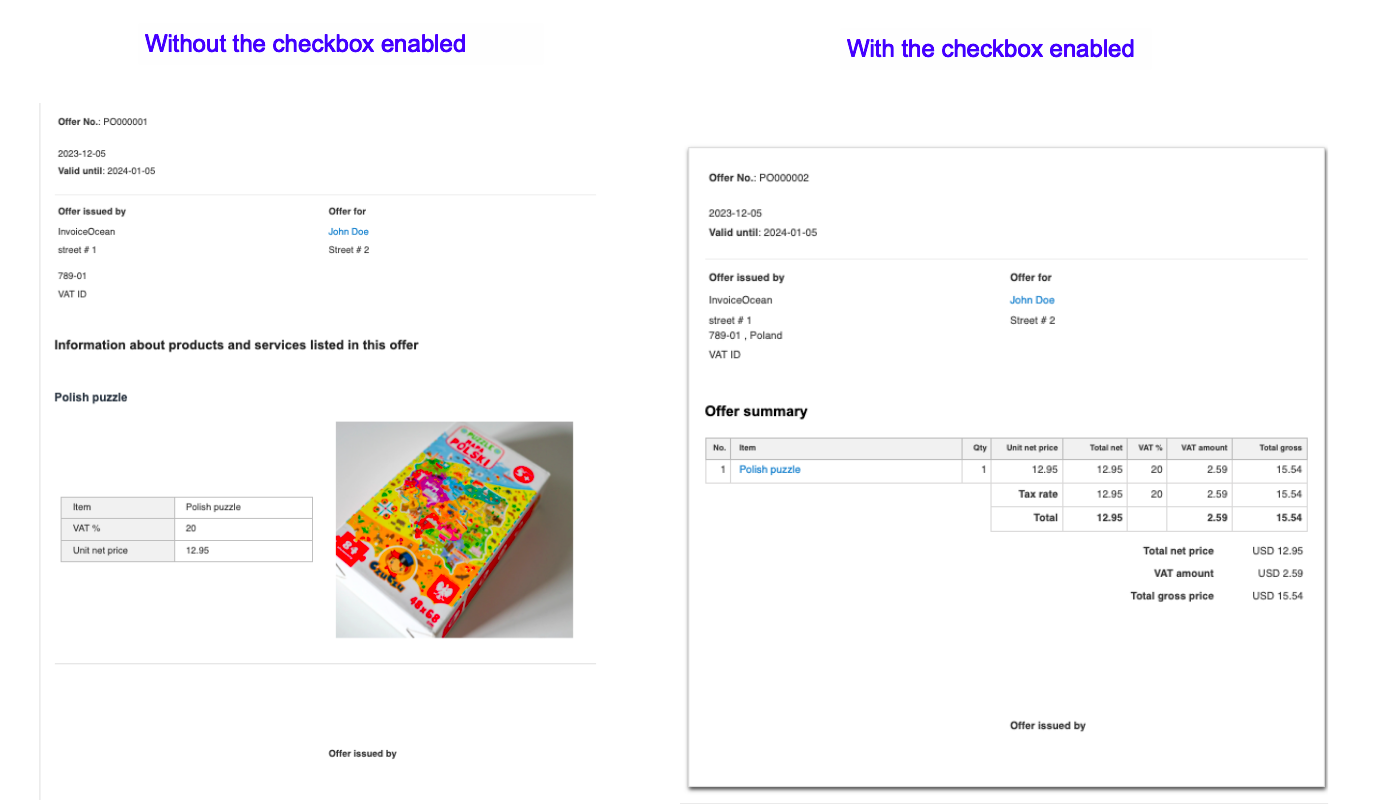
While creating a price offer, you can use the Show offer without product information option. What do you achieve with this feature? When you check the checkbox next to this option, the Show offer summary option is automatically enabled. As a result, the section with detailed product descriptions and their photos (if added on the product card) is hidden, and only the product summary remains visible on the document.
Using this option results in the document containing only the essential information, making the price offer more readable and clear in many cases.
Below, we present the appearance of the price offer document when the checkbox next to the Show offer without product information option is not selected and when this function is active.