All you have to do now is to insert a CSS code (below) into frame.
}
@media all{
#document_type,#document_number{
color:#493FB8 !important;
}
.header, .main_inv_table th{
background-color:#493FB8 !important;
border:1px solid #493FB8 !important;
}
#seller,#buyer,#summary{
border:1px solid #493FB8;
}
#pos_table .summary_totals > td:not(:empty){
background-color:#493FB8 !important;
border-bottom:1px solid #493FB8 !important;
}
table.main_inv_table td {
border-left: 1px solid #493FB8 !important;
border-right: 1px solid #493FB8 !important;
}
table td.empty{
border:none;
}
#pos_table > tbody > tr.position_row:last-of-type > td{
border-bottom:1px solid #493FB8 !important;
}
#pos_table tr.summary_totals > td.summary_header{
border-left: 1px solid #493FB8 !important;
}
#pos_table tr.summary_totals > td:not(:empty):last-of-type {
border-right: 1px solid #493FB8;
}
table td.empty {
border: 0 !important;
}
#seller_sign span{
color:#493FB8;
}
#buyer_sign span{
color:#493FB8;
}
After that click onto Save button.
Example of said option would be just like the one below:
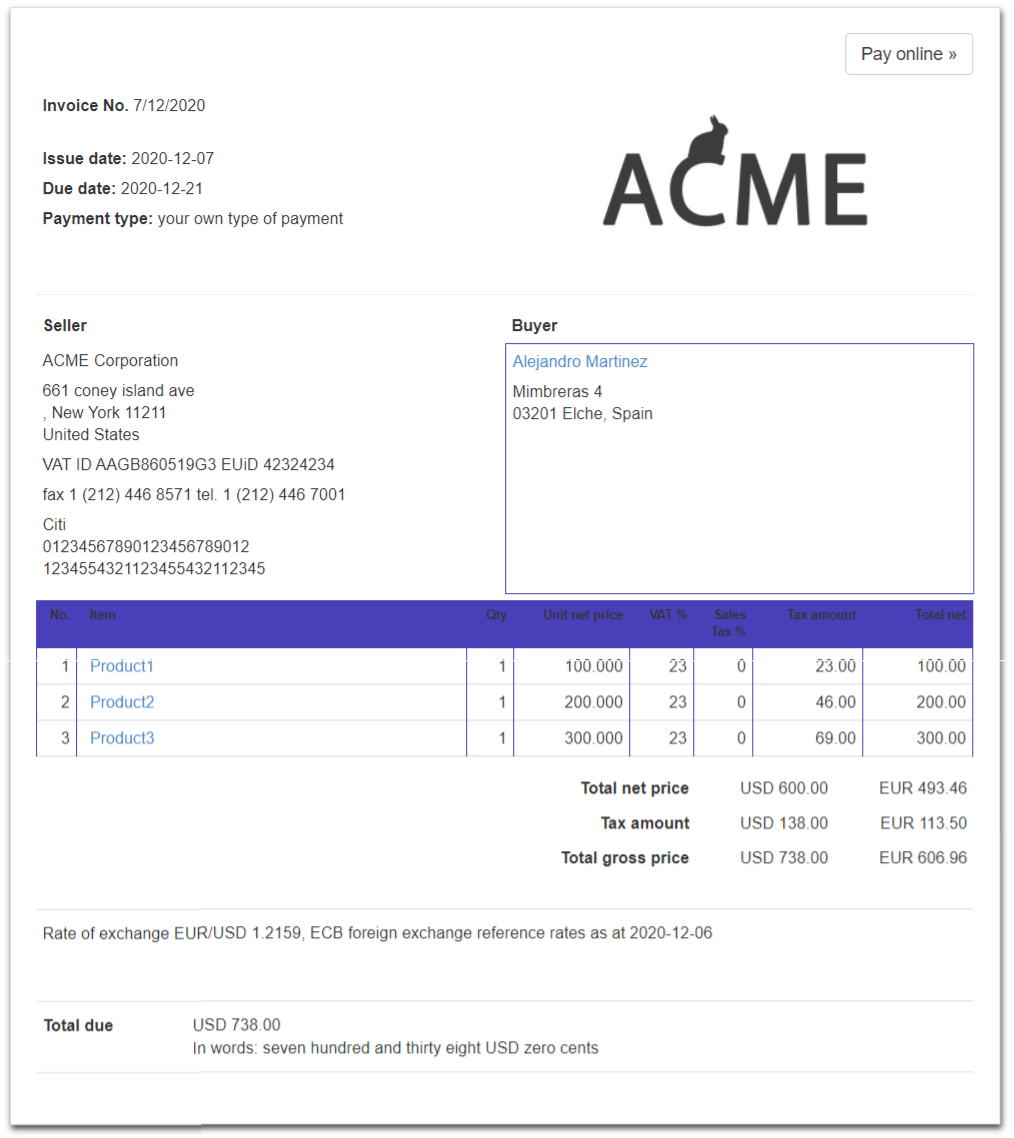
In the CSS code example (above) we used the purple color coded in hexadecimal format (#493FB8).
You can customize the color displayed on your invoices by using any color in hexadecimal format. There are many colors to use that can be found on the Internet.