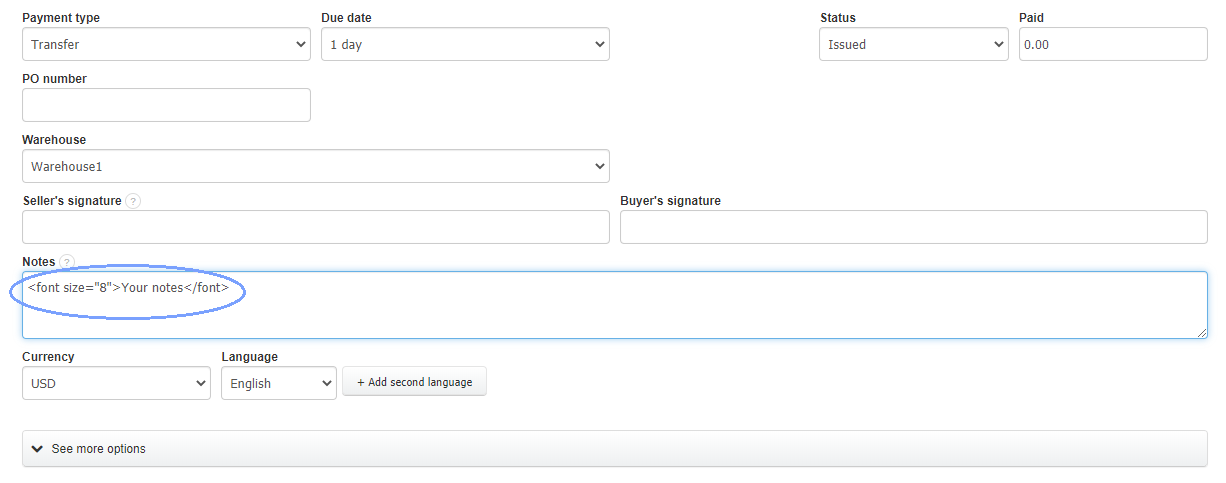
The text in the “Notes” field can be freely emboldened and increased using the appropriate html code.
Simply paste the codes below into the Notes field when editing or generating a new invoice.
<font size="n">Your notes</font> - for increased font size
<B>Your notes</B> - for bold font
<B><font size="n">Your notes</font></B> - for bold and increased font
instead of the letter "n", put your own value in numbers
If you want the text in the Notes field to be permanently increased, use the same code in Settings > Account settings > Configuration > Invoices and documents > Default entry in ‘NOTES’.
Note. In the Sky template, the given codes will only work in the 'Notes at the bottom of the page' field.
An example when you want to increase the text in the ‘Notes’ field:
When creating / editing an invoice, paste the code " <font size="8">Your notes</font> " into the ‘Notes’ field
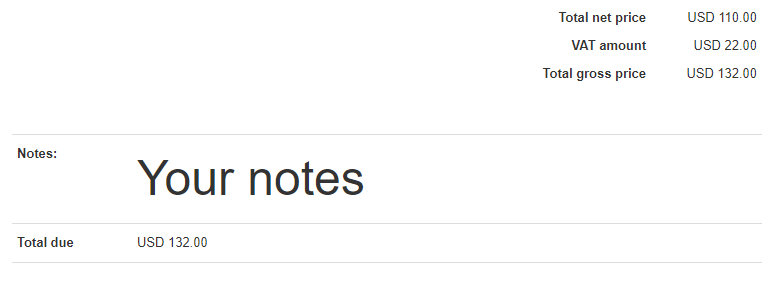
After applying the code, the text in the notes will be increased by the selected value: