Skip to content

Display numbers - Add zeros before numbers

Number of views: 1537 2 min read
Our invoicing software allows you to customize account settings to best suit your business needs. You can personalize the document numbering format, and one of the available options is choosing how numbers are displayed. The default account settings present numbers without leading zeros. In this article, you will learn how to add zeros before numbers in document numbering.  

Display numbers - Add zeros before numbers


1. To add zeros at the beginning of the displayed numbers: . go to Settings > Account Settings > Documents numbering tab
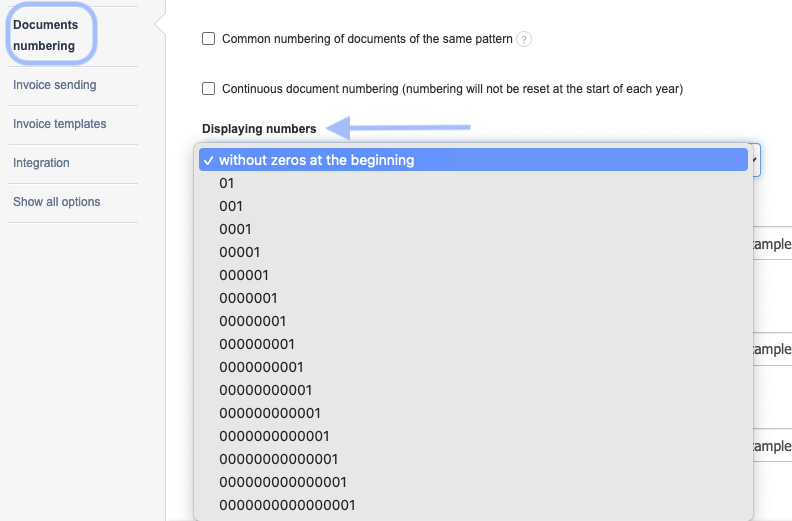
2. Click on the Displaying numbers field and choose from the available options how many zeros should appear before the numbers in the numbering
 
3. Confirm the changes by clicking Save at the bottom of the page.

After making this change, document numbering will start with the specified number of zeros in this setting.

The setting for the number of zeros before the numbers also affects the numbering of warehouse documents.

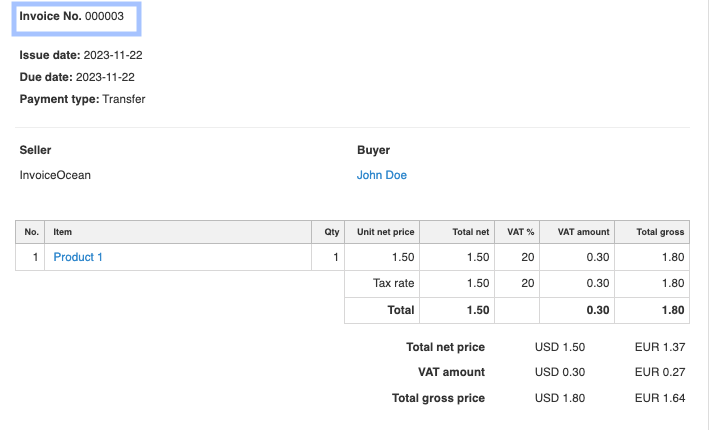
For example: → For the setting without zeros at the beginning, the numbering will look like this: 1/2023, 11/10/2023 (according to the selected format); → For the setting 001 (2 zeros before the numbers), the numbering will look like this: 001/2023, 011/10/2023 (according to the selected format); → For the setting 000001 (5 zeros before the numbers), the numbering will look like this: 000001/2023, 000011/10/2023 (according to the selected format)  
Was this entry helpful?

Share

Main response Carolina Escobar 2024-08-16 09:01

Thank you for using InvoiceOcean. How can we help you?

Comments (2)

Carolina Escobar 2024-08-16 09:01 Main response
Thank you for using InvoiceOcean. How can we help you?
Anonymous 2024-08-15 04:14
0568515788